The Complete Guide to PDF Compression
You've all been there: a PDF too large to email, bouncing back with a size-limit error. PDFs balloon for predictable reasons, and understanding them is the key to compressing safely without turning your document into a blurry mess.
Key takeaways
- Embedded images are usually the biggest cause of huge PDFs.
- Downsampling images to screen resolution reclaims the most space.
- Subsetting fonts and removing metadata trims further overhead.
- Browser-based compression keeps confidential documents private.
Why PDFs get so big

A PDF bundles text, vector graphics, fonts and — most importantly — images into one file. High-resolution scans and photos are almost always the culprit behind a bloated document. A single 300 DPI full-page scan can weigh several megabytes on its own.
Embedded fonts, form data and invisible metadata add further weight, but images are where the real savings live.
How compression shrinks them safely
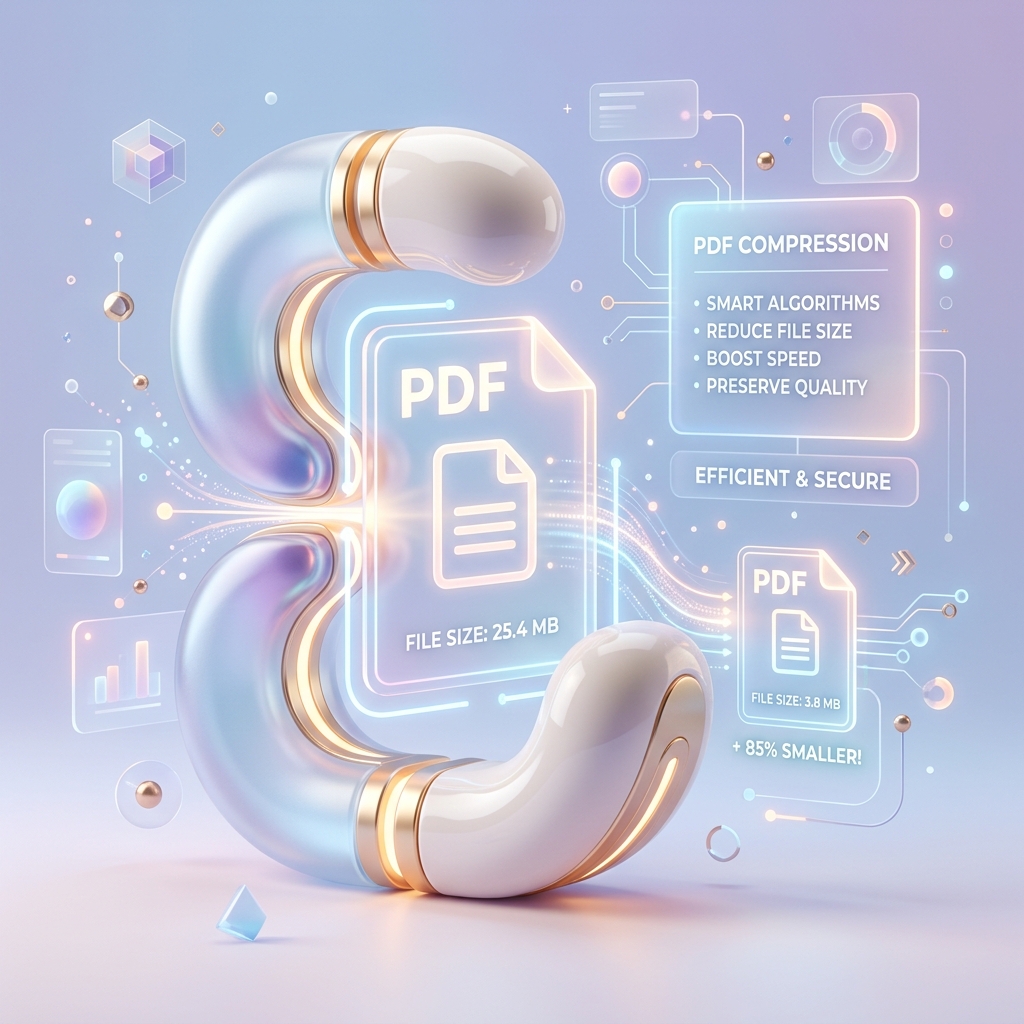
The most effective technique is downsampling: reducing image resolution to match how the document will actually be viewed. A PDF read on screen only needs around 150 DPI; anything more is wasted data. Re-encoding images with efficient JPEG or JPEG2000 compression cuts size further.
Beyond images, subsetting fonts (embedding only the characters actually used) and stripping unnecessary metadata can trim a surprising amount without touching visible quality.
Keeping quality — and privacy — intact
The goal is to compress to the right level for the job. For email and web, aggressive compression is fine. For printing, keep resolution at 300 DPI. A good tool lets you choose that balance rather than forcing one setting.
Since PDFs often hold contracts, IDs and financial records, favour tools that compress entirely in your browser so the file never leaves your device.
Gowtham
Solo developer and creator, writing clear guides and building tools so you always have current, trustworthy content.