


How to Extract Frames from a Video
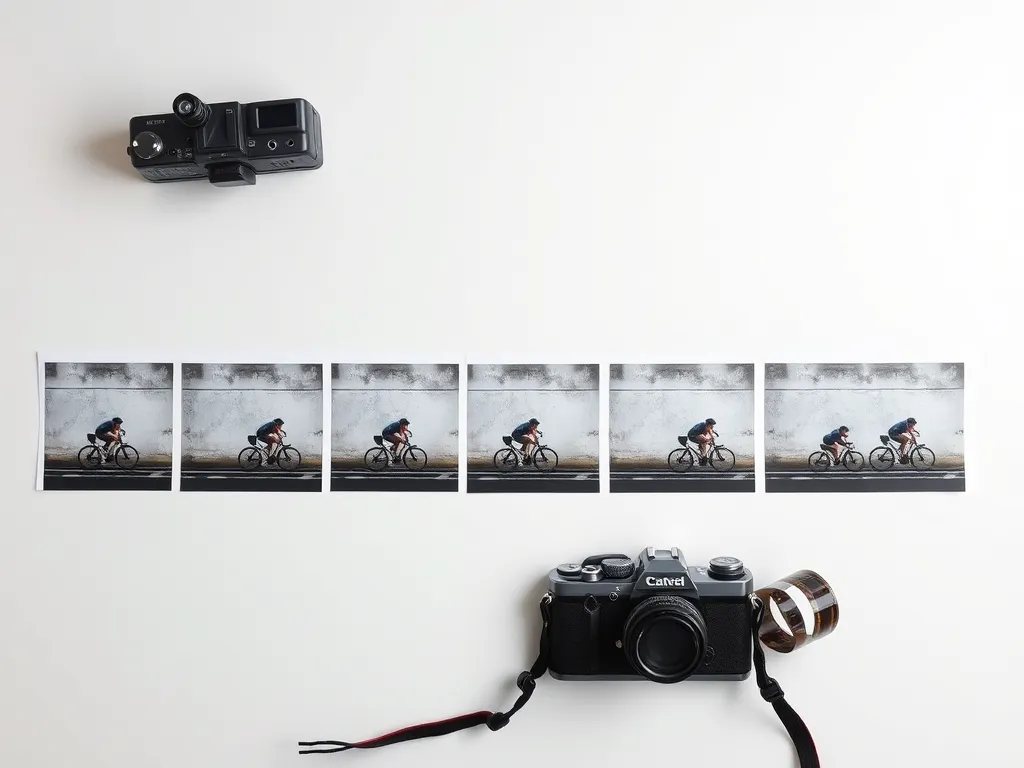
A video is just a long stack of still images shown quickly. Pulling those images back out is useful more often than you might expect — for thumbnails, storyboards, reference stills or simply grabbing the one perfect moment.
Key takeaways
- A video's frame rate decides how many stills each second contains.
- Extracting at a lower rate gives fewer, more useful images.
- JPG keeps files small; PNG keeps every pixel; WebP does both.
- Browser-based extraction keeps your footage on your own device.
Why extract frames at all
The most common reason is a thumbnail: the best frame of a video is rarely the one a platform picks automatically. Frames are also handy for storyboards, for comparing a movement step by step, and for pulling reference images out of footage you shot yourself.
A screenshot can do this for a single moment, but it captures your screen rather than the video itself. Extracting frames gives you the actual image at the video's own resolution.
Frame rate decides how many images you get
A 30 fps video holds 30 images for every second, so a one-minute clip contains 1,800 frames. You almost never want all of them. Extracting at 10 frames per second gives you a manageable set that still covers the action; 30 or 60 is for when you need every step of a fast movement.
A good rule is to start low. If the moment you want falls between two extracted frames, run it again at a higher rate on just that part of the clip.
Pick the right image format
JPG produces the smallest files and is the sensible default when you are extracting many frames. PNG is lossless, which makes it the better choice for frames you plan to edit or that contain sharp text and graphics. WebP gives you small files with good quality and works in every modern browser.
Doing it in your browser
The Video to Frame tool on Video to Images extracts frames from MP4, WebM or MOV files at 10, 30 or 60 frames per second and saves them as JPG, PNG or WebP. The video is processed on your own device, so nothing is uploaded.
Drop the file in, choose the rate and format, and download the frames you need.
Gowtham
Solo developer and creator, writing clear guides and building tools so you always have current, trustworthy content.